01
Choose the signal
Select frame rate, mode, and tone. For latency above 500 ms, enable QR in Settings, then press START to run the reference pattern.
Tutorial
Measure - don't guess!
A quick walkthrough for live production, end-to-end checks, Camera Measure, and QR anchor setup. Use this page as a practical guide before you go on set or into the truck.
Quick Start
Start with the core workflow: generate a reference signal, measure the offset, then confirm the result on site.
01
Select frame rate, mode, and tone. For latency above 500 ms, enable QR in Settings, then press START to run the reference pattern.
02
On the pattern device, read the circular meter in frames and milliseconds. On a second device, open Camera Measure and aim at the screen for a live end-to-end readout.
03
Set the delay in your audio desk, video processor, or playback chain until the meter sits at zero and the chain is aligned.
Screens
The core flow: configure QR and frame rate, run the pattern with anchor code visible, then measure from a second device.
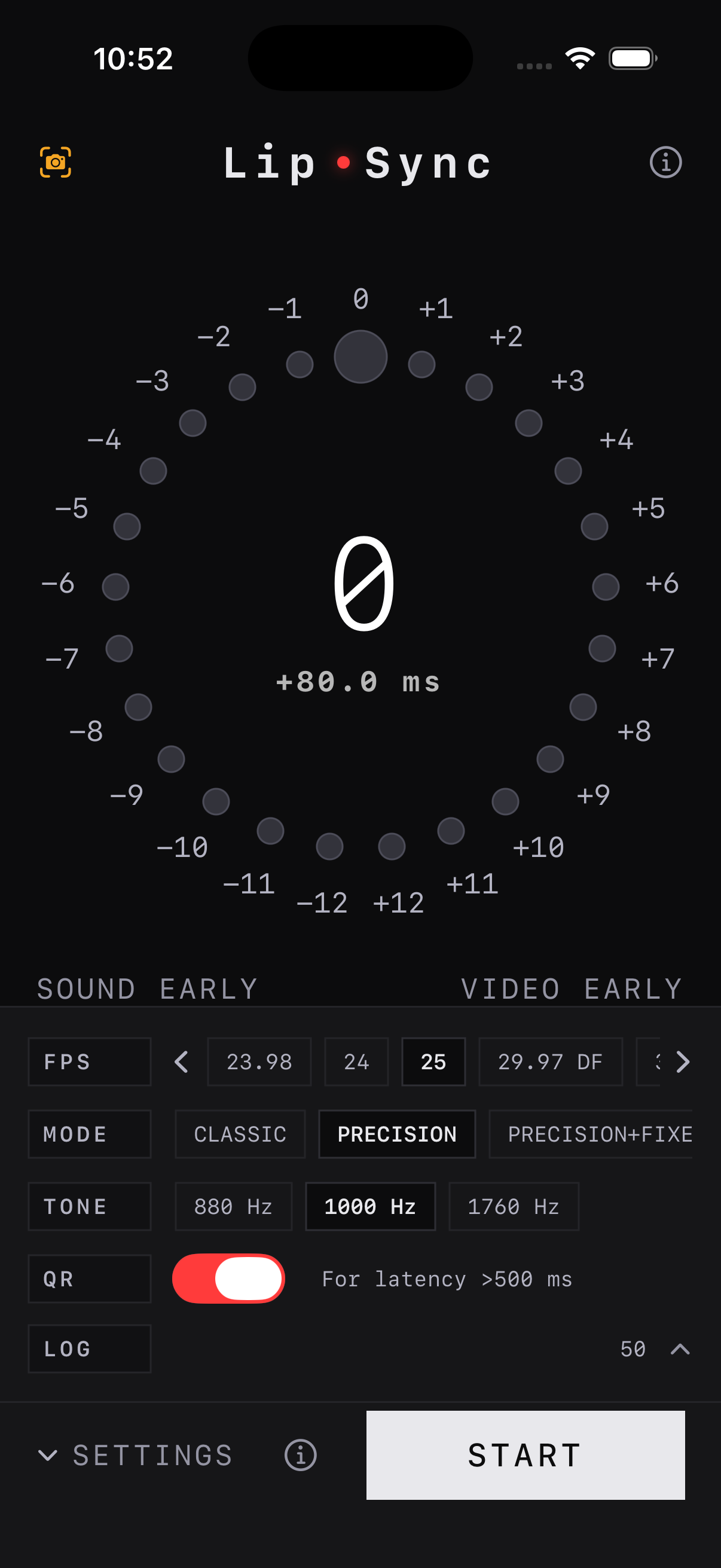
Settings with frame rate, precision mode, tone, and QR anchor toggle.
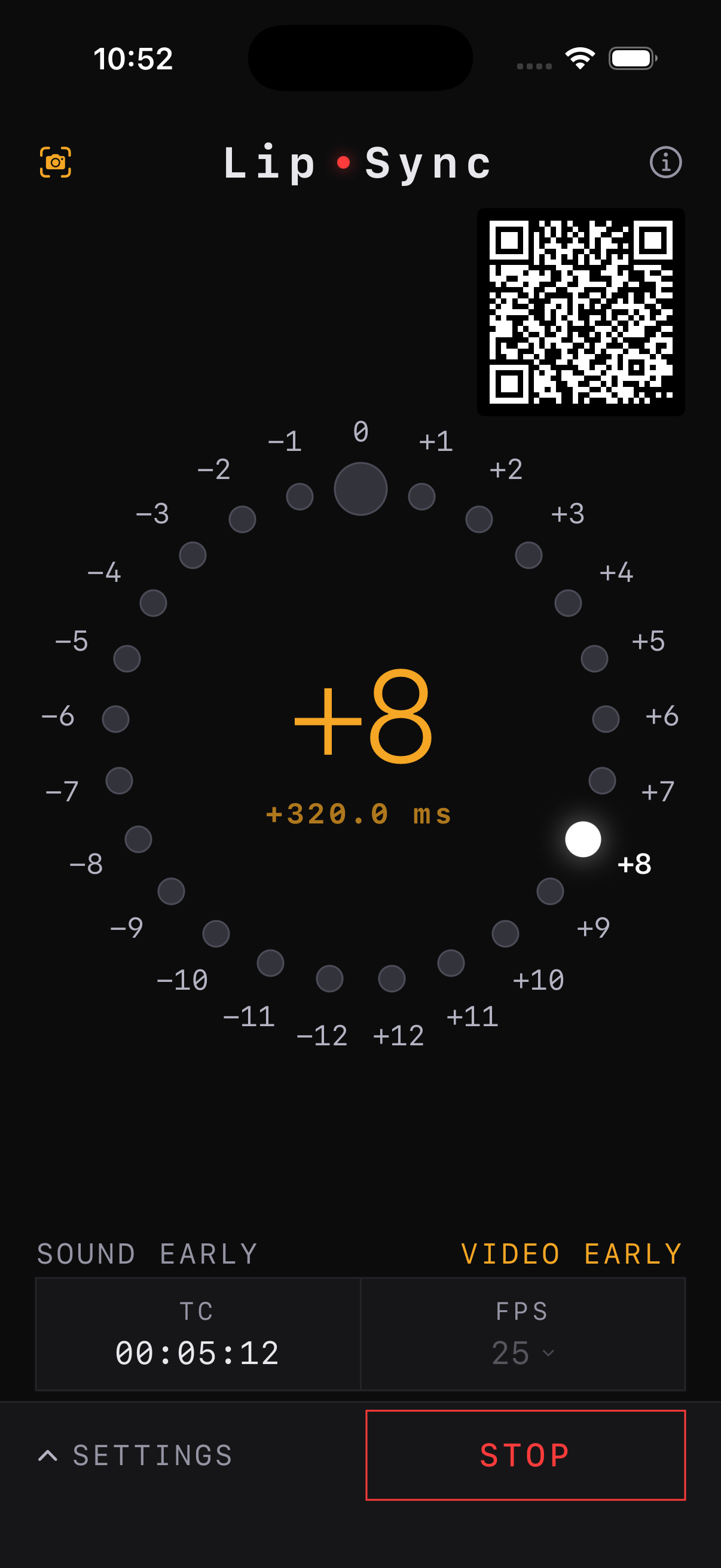
Sync pattern running — anchor QR visible while flash and beep play.
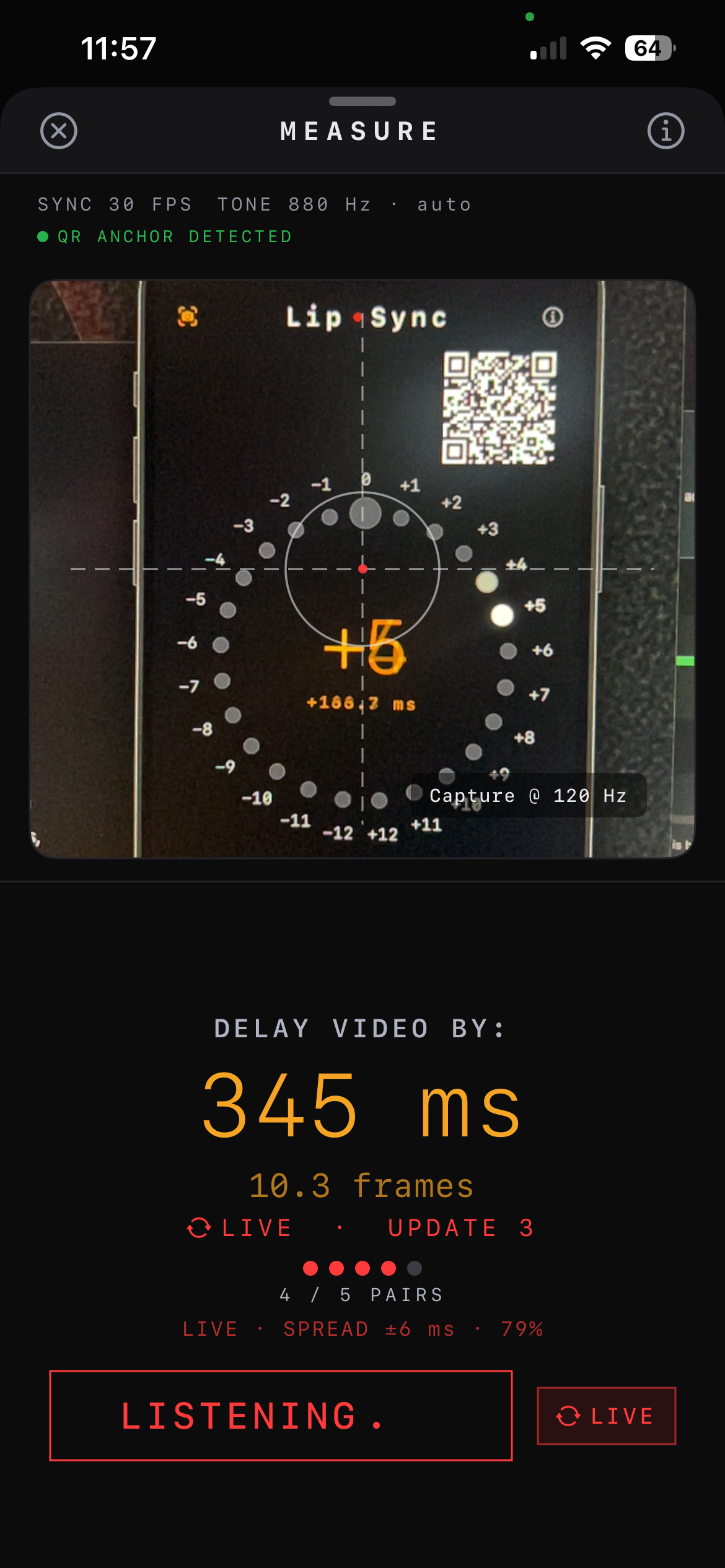
Camera Measure in live mode with QR anchor detected.
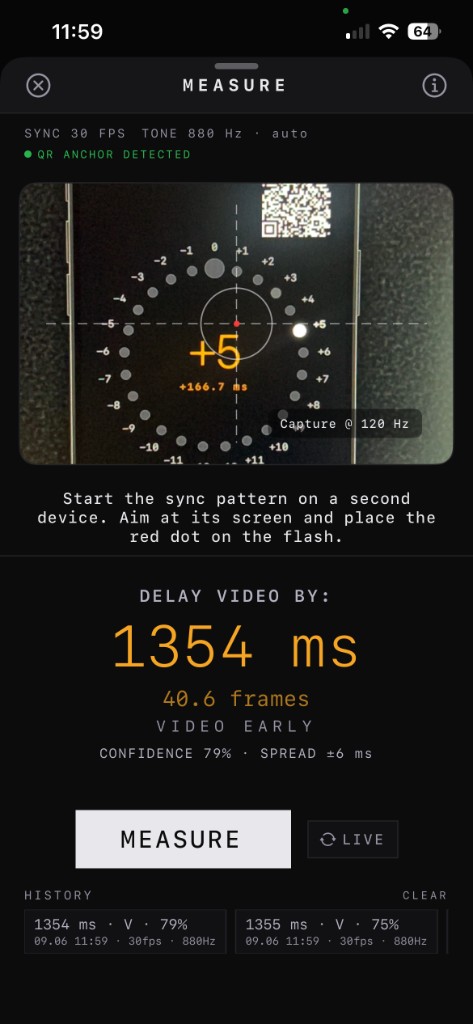
Long-latency result with confidence, spread, and local history.
Camera Measure
Camera Measure lets you capture flash and beep alignment on device. It is designed for quick verification without extra tools, so you can check the full signal path in real time.
A
Tap the camera icon on the measuring phone. Aim at the pattern screen and keep the flash marker centered on the red dot overlay.
B
Use LIVE for continuous updates or MEASURE for a locked result. Delay is shown in milliseconds and frames, with confidence and spread.
Live mode: QR anchor detected, pairs building, delay updating in real time.
Locked measurement with history — ideal for long chains through switchers and monitors.
QR Sync Anchor
For delays above 500 ms, standard flash/beep matching can alias across beats. Enable QR in Settings on the device that runs the sync pattern — it shows an anchor code on screen while the pattern runs.
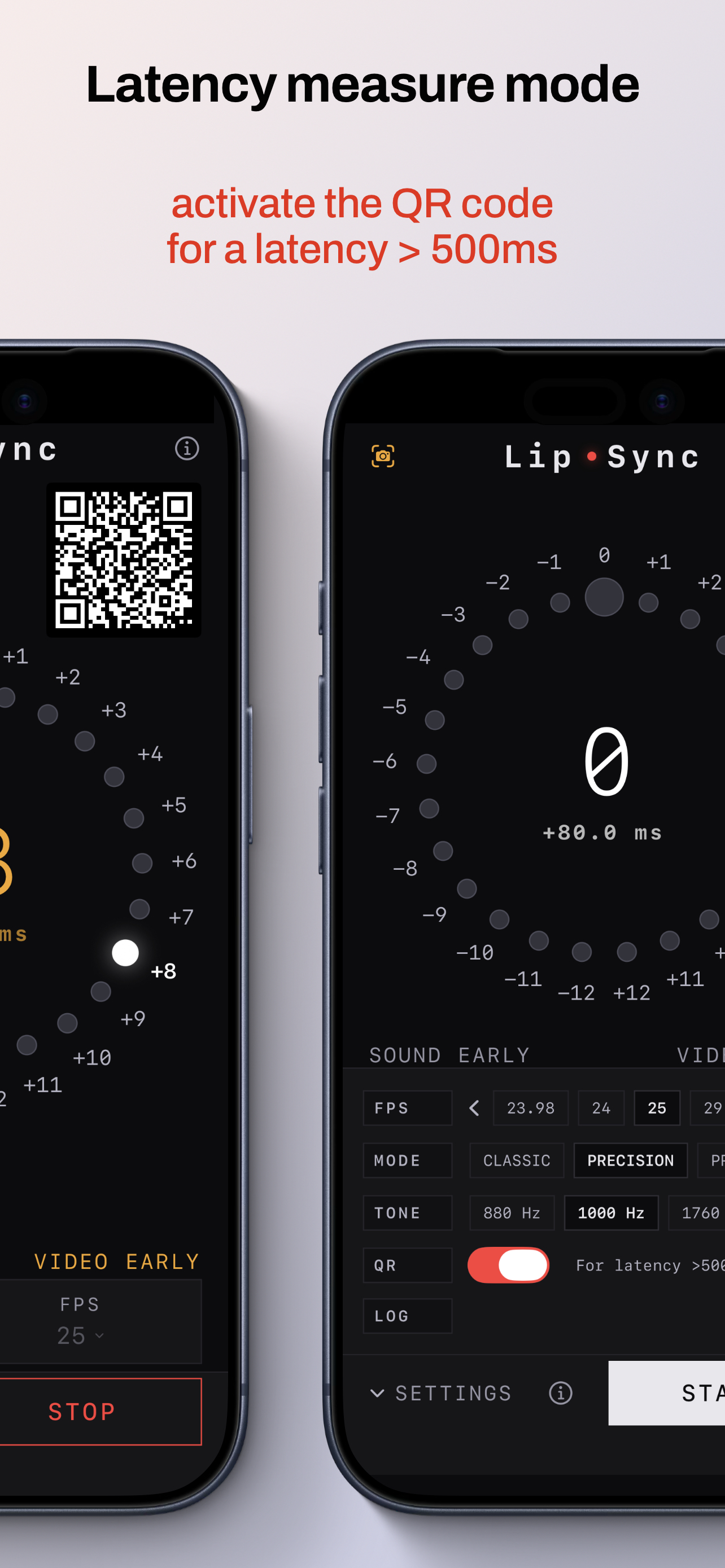
Enable QR on the source device (left). The measuring phone scans the anchor while the pattern runs (right).
1
On the phone or tablet driving flash and beep, turn on QR in Settings. The anchor code appears on screen once the pattern is running.
2
On the measuring device, keep the QR code anywhere in the camera preview. When QR anchor detected appears, the app can match beats across longer signal paths.
Workflow
This workflow is useful for shows, studio checks, and playback verification when you need a fast answer before going live.
Tip: Start with the loudest and brightest reference you can control, then reduce variables one by one. For chains above 500 ms, enable Anchor QR on the source device before measuring. If the meter is stable at zero, your audio and picture path are aligned.
FAQ